Testimonial widget for Elementor
Add a testimonial carousel, slider or wall to an Elementor page with the free HTML widget.
Free to build. You need a free ReTestimonial account to get the code.
Build your widgetLoading the builder…
Builder not showing? Open it on ReTestimonial
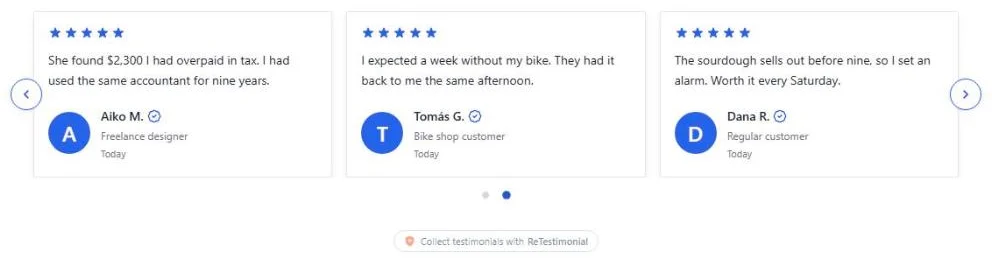
This is the carousel layout. See all six layouts
Before you start
What Elementor asks for.
- The free version of Elementor is enough. The HTML widget is not one of its Pro widgets.
- Elementor limits its HTML widget to administrators, because the widget can run scripts. Elementor says an administrator can change that in its Role Manager.
Add it to Elementor
Steps last checked on 3 October 2026.
- 1Build your widget above, create the free account and copy the snippet.
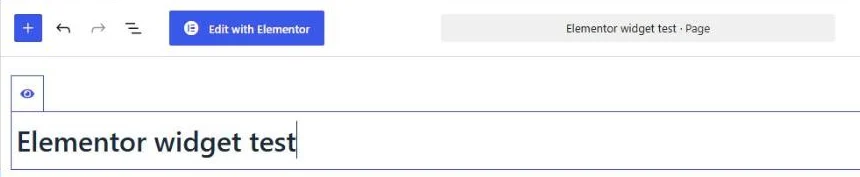
- 2Open the page in WordPress and click Edit with Elementor.
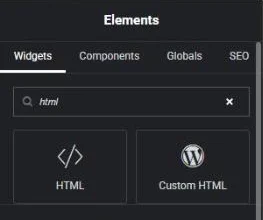
- 3In the Elements panel, type html into the search field. Click the HTML widget, or drag it to where the testimonials should appear.
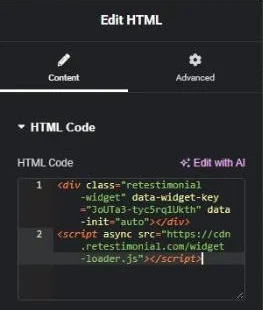
- 4Paste the whole snippet into the HTML Code field. Both lines go in, the script line too.
- 5Click Publish. To keep the page private for now, open the arrow beside Publish and choose Save Draft.
What to expect
- The widget shows inside the editor a moment after the snippet is pasted. In the test, changing the code afterwards left an empty box in the editor until the editor was reloaded. The page itself showed the widget.
- Elementor has a Testimonial widget of its own, which shows one quote that you type in. Its Testimonial Carousel is listed among Elementor's Pro widgets, and a search for “testimonial” in the free editor finds only the first.
How these steps were checked
Tried with the free version of Elementor 4.3.3 on a self-hosted WordPress 7.1 site: the widget showed in the editor and in the preview of a draft page. The page was not published.
- Elementor Help Center: HTML widget
- Elementor Help Center: Testimonial widget
- Elementor Help Center: Testimonial Carousel widget
Website builders rename things. If a label here no longer matches what you see, tell us.
Other website builders
Are your reviews on Google? Add Google reviews to Elementor