Testimonial widget for Framer
Add a testimonial widget to a Framer site with the Embed component.
Free to build. You need a free ReTestimonial account to get the code.
Build your widgetLoading the builder…
Builder not showing? Open it on ReTestimonial
This is the carousel layout. See all six layouts
Add it to Framer
Steps last checked on 3 October 2026.
- 1Build your widget above, create the free account and copy the snippet.
- 2Open the Insert menu and search for Embed.
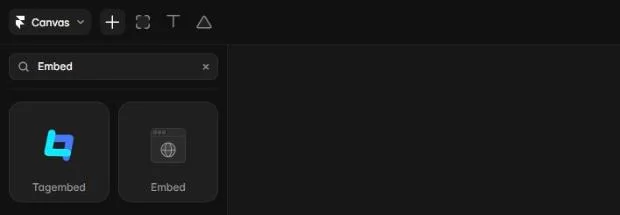
- 3Add the Embed component to the page, where the widget should appear.
- 4In the component's settings, set Type to HTML. In the HTML field, put the line <!-- framer-direct-embed --> first and paste the snippet under it.
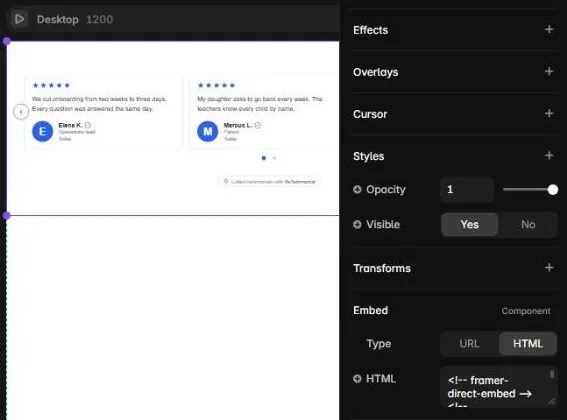
- 5Publish the site and open it in your browser.

What to expect
- The first line matters. With the snippet alone, the published page showed an empty space in the test: Framer puts code that contains a script into a frame of its own, and the widget's script stopped inside it. The line tells Framer to place the code on the page itself.
- That line comes from the Embed component's own code. Framer's help pages do not mention it, so it may change. If the widget stops showing after a Framer update, look here first.
- ReTestimonial also gives each widget an embed address (Get code, then Iframe / Embed URL), which fits the Embed component's URL type. That route was not tried.
- If the published widget is cut off, make the Embed component taller.
How these steps were checked
Tried on a published Framer site on its free plan: the widget showed once the framer-direct-embed line was in place.
- Framer Help: How to add an iframe or embed script
- Framer Help: Embedding a Trustpilot widget in your site
Website builders rename things. If a label here no longer matches what you see, tell us.