A testimonial form you can copy
A short testimonial form to copy: seven fields for an email or a form tool, the HTML for your own page, and the steps to send answers straight to a widget.
Published
A testimonial form asks a customer a few questions about how it went, and asks whether you may show the answers. The one below has three questions and takes a customer about three minutes.
Copy its fields into an email or a form tool, copy its HTML into a page of your own, or set it up in a tool that passes the answers straight to a widget.
When a form is the right tool
For one customer you know, one question in an email gets more replies than any form. How to ask a customer for a testimonial has the wording.
A form is for asking many customers the same way: a link in the message that follows every order, a code on the counter, a page on your site. It also keeps every answer, and every permission, in one place.
The form
This is a preview. You can type in it, and nothing is sent.
The fields to copy
Paste these into an email, or into the form tool you already use.
Testimonial form: the fields
Your name

Your role and company, or your town

What nearly stopped you from buying?

What is different now compared with before?

What would you tell a friend who was considering us?

May we show your answers on our website, with your name? Yes / No

A photo of you, if you would like one shown (optional)
What each field is for
- Name, then role and company or town. A quote with nobody behind it reads as if the business wrote it. A business customer gives a role and a company. A private customer gives a town.
- What nearly stopped you from buying? It brings the doubt your next visitor also has, from someone who got past it.
- What is different now compared with before? It brings the result, often with a number.
- What would you tell a friend who was considering us? It brings a recommendation in the customer's own words.
- The permission question. It is the one field you cannot leave out. Keep every answer to it, the ones that say no as well.
- A photo. A face makes a testimonial easier to believe, and plenty of customers would rather not give one. Keep it optional.
Each of the three questions brings a different kind of answer. To swap one, testimonial questions to ask your customers has fifteen, sorted by what each one gets you.
What to leave out
- More questions. Each one lowers the number of customers who finish.
- An email address or a phone number, unless you need it to reply. Ask only for what you will show or use.
- A rating with nothing else. Stars beside the customer's words are fine. Stars in place of the words give you a number and nothing to quote.
Three ways to use the form
In an email
This needs no tool at all. Paste the fields under a short message, and say that a reply with the answers is all you need. The reply is the testimonial. It is also your record of the customer's permission, so keep it.
In a form tool you already have
If your website builder or your email tool has a form block, make a form with these seven fields. Use a long text field for each question, a yes or no choice for the permission, and a file upload for the photo if the tool has one. Have the answers sent to an address you read.
On a page you write yourself
Use the HTML below.
The HTML
Paste this where the form should appear.
Testimonial form: HTML and CSS
<!-- A testimonial form. Put the address that receives the answers in "action". -->
<form class="tf" action="/your-form-handler" method="post">
  <h2>Tell us how it went</h2>
  <p>Three short questions. Answer as many as you like.</p>

  <label for="tf-name">Your name</label>
  <input id="tf-name" name="name" type="text" autocomplete="name" required>

  <label for="tf-role">Your role and company, or your town</label>
  <input id="tf-role" name="role" type="text">

  <label for="tf-doubt">What nearly stopped you from buying?</label>
  <textarea id="tf-doubt" name="doubt" rows="3"></textarea>

  <label for="tf-change">What is different now compared with before?</label>
  <textarea id="tf-change" name="change" rows="3"></textarea>

  <label for="tf-friend">What would you tell a friend who was considering us?</label>
  <textarea id="tf-friend" name="friend" rows="3"></textarea>

  <fieldset>
    <legend>May we show your answers on our website, with your name?</legend>
    <label><input type="radio" name="permission" value="yes" required> Yes</label>
    <label><input type="radio" name="permission" value="no"> No</label>
  </fieldset>

  <button type="submit">Send</button>
</form>

<style>
  .tf {
    --tf-accent: #2440d9; /* button and focus ring */
    --tf-line: #6f7689;   /* field borders */
    --tf-text: #1b2033;   /* text */
    max-width: 34rem;
    margin: 0 auto;
    color: var(--tf-text);
  }
  .tf h2 {
    margin: 0 0 0.25rem;
    font-size: 1.5rem;
  }
  .tf p {
    margin: 0;
  }
  .tf label,
  .tf legend {
    display: block;
    margin: 1.25rem 0 0.375rem;
    padding: 0;
    font-weight: 600;
  }
  .tf input[type="text"],
  .tf textarea {
    box-sizing: border-box;
    width: 100%;
    padding: 0.625rem 0.75rem;
    border: 1.5px solid var(--tf-line);
    border-radius: 8px;
    background: #ffffff;
    color: inherit;
    font: inherit;
  }
  .tf textarea {
    resize: vertical;
  }
  .tf fieldset {
    margin: 1.25rem 0 0;
    padding: 0;
    border: 0;
  }
  .tf legend {
    margin-top: 0;
  }
  .tf fieldset label {
    display: inline-flex;
    align-items: center;
    gap: 0.5rem;
    margin: 0 1.5rem 0 0;
    font-weight: 400;
  }
  .tf input[type="radio"] {
    width: 1.125rem;
    height: 1.125rem;
    margin: 0;
    accent-color: var(--tf-accent);
  }
  .tf button {
    margin-top: 1.5rem;
    padding: 0.75rem 1.75rem;
    border: 0;
    border-radius: 8px;
    background: var(--tf-accent);
    color: #ffffff;
    font: inherit;
    font-weight: 600;
    cursor: pointer;
  }
  .tf :focus-visible {
    outline: 3px solid var(--tf-accent);
    outline-offset: 2px;
  }
</style>- It needs somewhere to send the answers. Replace
/your-form-handlerin the second line with the address of whatever receives your forms: a script on your own server, or a form service. - Two fields are required: the name and the permission. The browser stops a customer who skips one and points to it. The questions are left open, so a customer can answer one and still send the form.
- Every field has a label, so the form works with a screen reader and from the keyboard.
- It uses your page's font. Change the three colours at the top of
.tfto match your site.
What this code does not do
- It does not send or store anything by itself. That is the job of the address in
action. - It has no photo field. A file upload needs a receiver that accepts files, and many do not. Ask for the photo in your reply.
- It does not keep spam out. A public form attracts it.
- The answers do not reach your website. You copy each one into a page by hand, or into a widget.
A form that passes the answers to your widget
A testimonial tool gives you the form as a link. The customer opens it and answers, and the answer arrives in your account, ready to go into a widget. Nothing is copied by hand. ReTestimonial, the tool behind the builders on this site, works this way:
- The free plan has room for 1 form. The Pro plan, $29 a month for each project, has room for 3 forms in a project.
- The form has a page of its own that asks for permission.
- An answer waits for your approval before a widget can show it, unless you set the form to approve high ratings by itself.
- A customer can record a video through the same form. Video testimonials covers that.
See ReTestimonial's collection forms. This site earns money when visitors pay for the tools it features; how this site is paid explains.
Set it up
These steps were tried on 10 October 2026.
- In your project, open Forms under Collect and click Create Form. The test project already had forms. For a project with none, ReTestimonial's help page says to pick a template card under Create your first form instead.
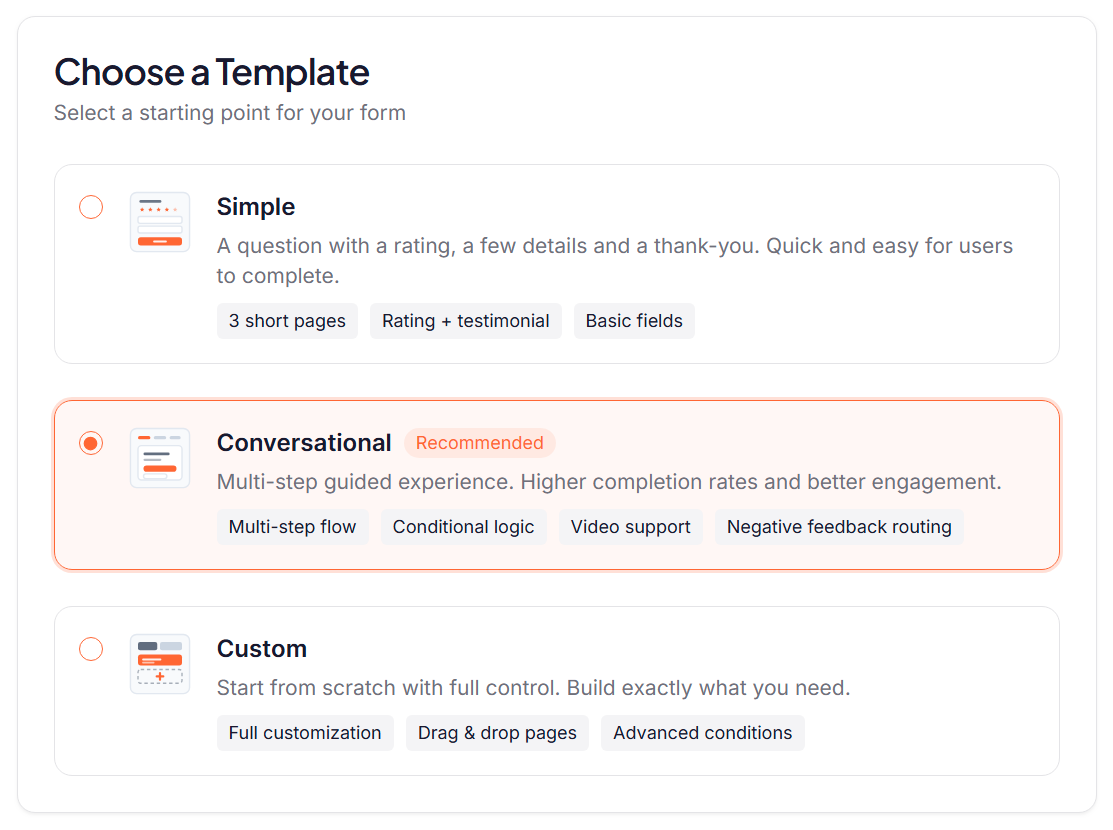
- Type a name for the form and choose a template. Conversational asks for one thing on each page and includes a page for permission. Click Create Form.
- The builder opens, with the form's pages listed on the left and a preview on the right. Click the Question page.
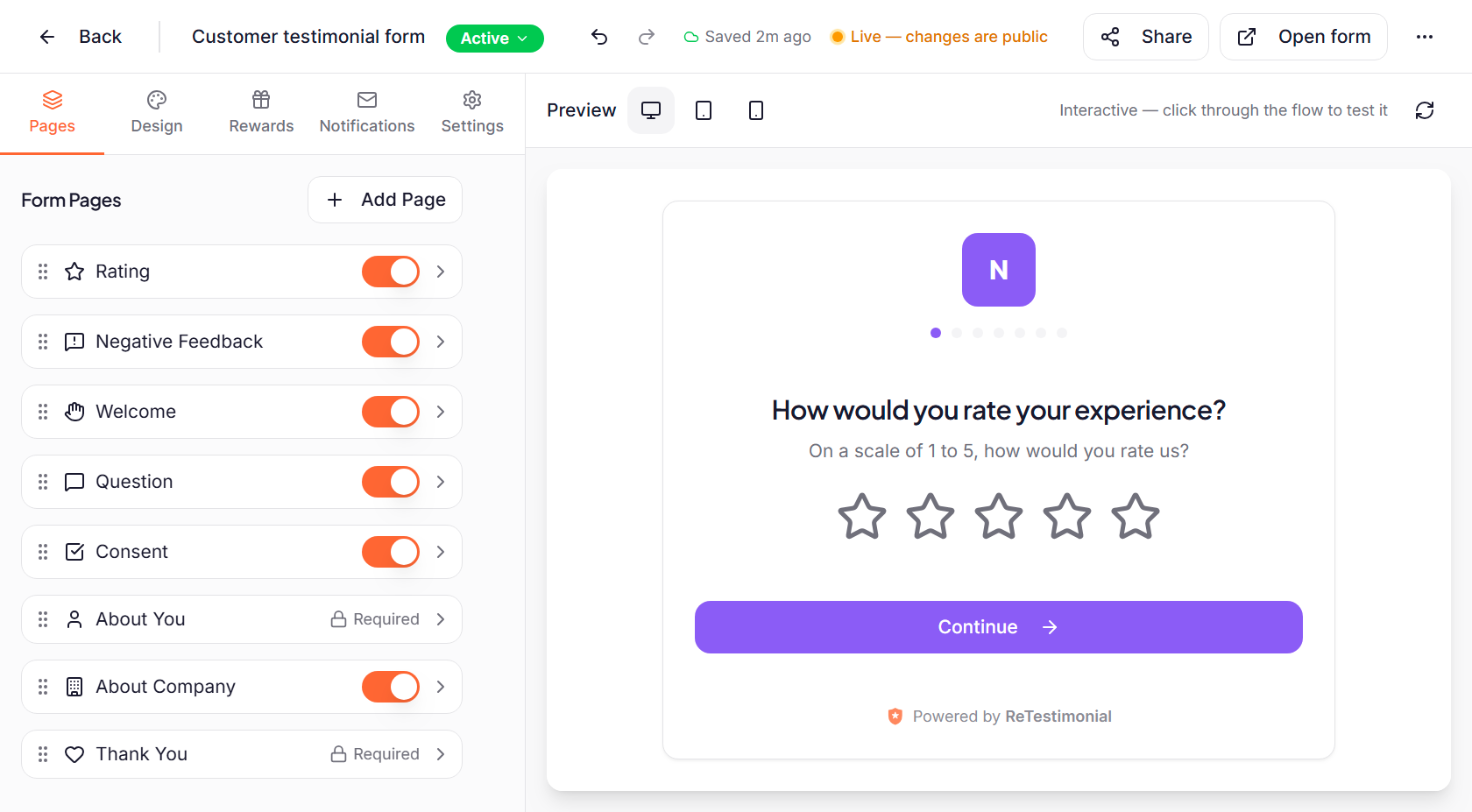
- Under Questions, type your three questions over the ones that are there, and remove the fourth with the cross beside it.
- Click through the preview as a customer would. Nothing you type there is sent.
- Click Share. Copy the Form URL to send to customers, or click Download PNG for a QR code to print.
What your customer sees
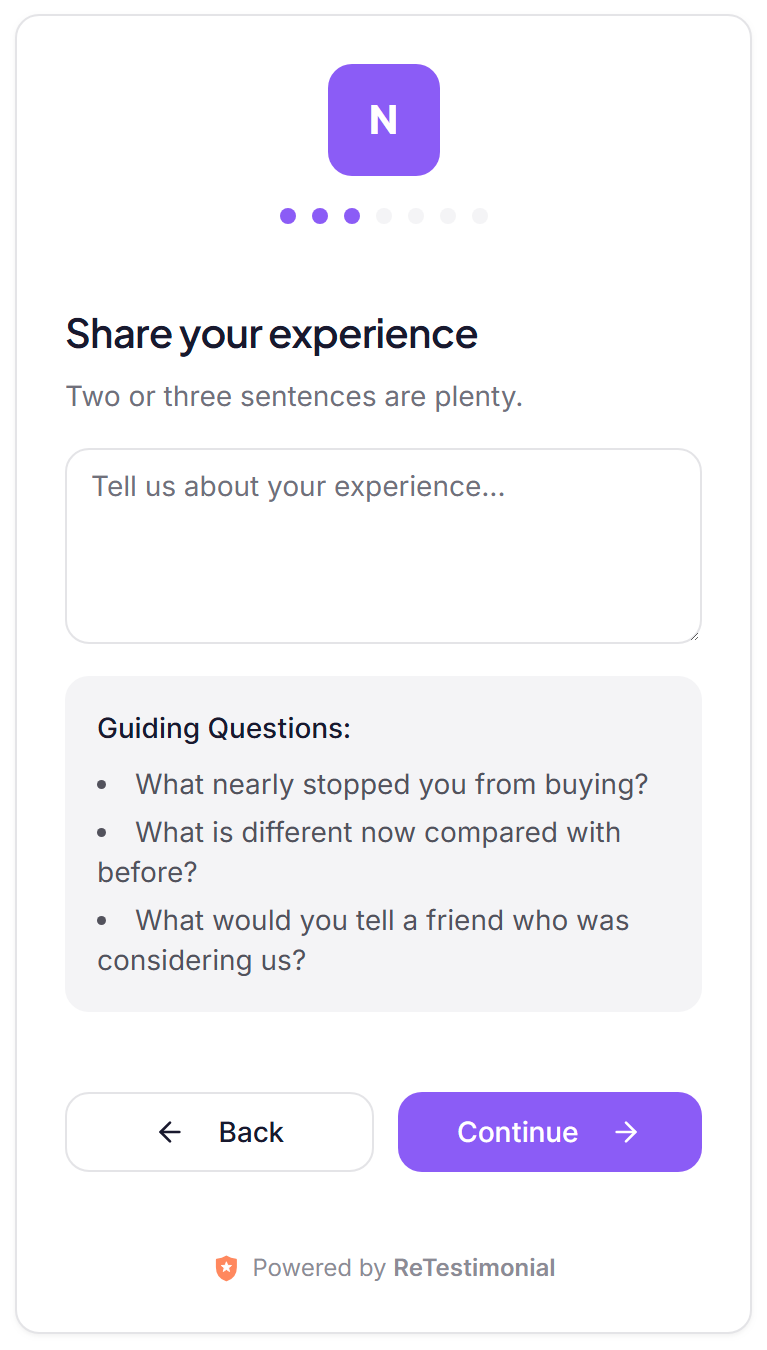
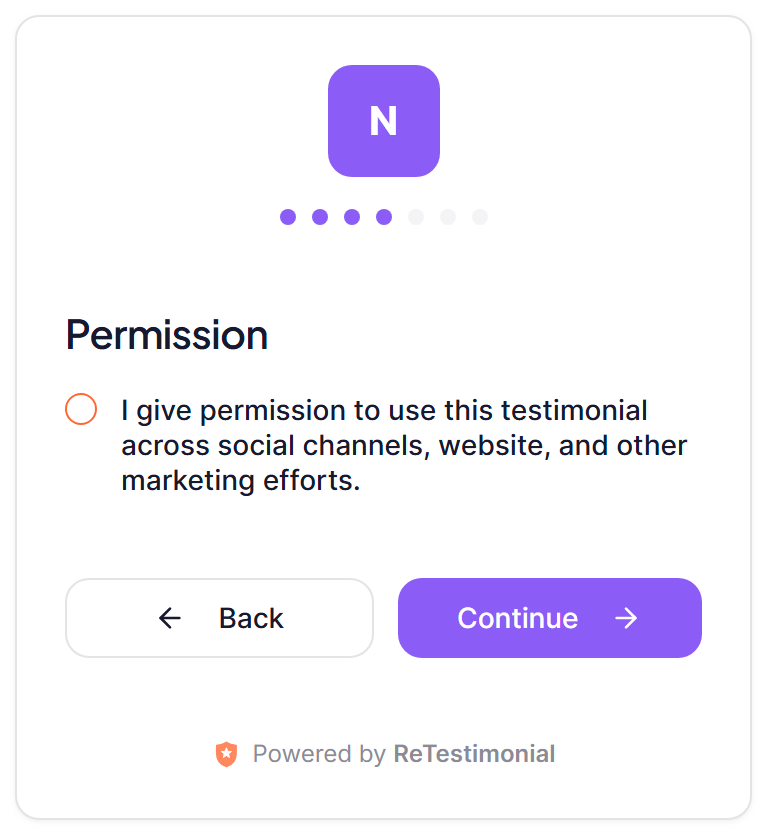
The question page has one box to write in, with your three questions under it as prompts. The permission page follows it.
What the test showed
- The form is live as soon as you create it. It starts as Active, and every change is saved to the form your customers see. To take it offline, click the status beside the form's name and choose Pause form.
- One box, not three. The template does not give each question a box of its own. The customer writes one answer, prompted by your questions, and that answer becomes the testimonial. The builder says that if you add more written questions, only the first answer becomes the testimonial's text. The rest are kept as form answers for you to read.
- It opens with a star rating. A customer who gives three stars or fewer is taken to a page that asks what went wrong. ReTestimonial's own pages say that answer stays private.
- It asks for an email address. In this template the customer's name and email are both required. The About You page is where you change what is asked.
How these steps were checked
Tried in a ReTestimonial account: a form was created from the Conversational template, its prompts were changed to the three questions above, and its link answered with the form for a visitor who was not signed in. The form was then paused. No answer was sent through it. That the answer then waits for approval comes from ReTestimonial's own pages, not from the test.
The account was on a paid plan. What the free plan includes was read from ReTestimonial's pricing and forms pages on the same day. The labels were checked against its help pages:
- ReTestimonial Help: Build a collection form
- ReTestimonial Help: Add questions, ratings and required answers
Send it at the right moment
A form gets answers when it arrives just after something went well: a delivery, a finished job, a result. How to ask a customer for a testimonial covers when to send it and what to say. A customer who would rather fill in blanks than answer questions may find a testimonial template easier.
When the answers come in
Pick the sentence or two that answer a visitor's doubt, and leave the words as the customer wrote them. Short testimonial examples shows how to cut a long answer down without changing what it says.
When you have a few, build a widget to show them on your site.